Create a New Stateful Node
This procedure describes how to create a new stateful node from scratch.
Prerequisites
Before you can create a stateful node, you need to complete the following:
- Ensure your AWS account is connected to your Spot account.
- Ensure your Spot Policy is up to date.
- Memory utilization graphs require the Cloudwatch agent. For more information, see the AWS documentation.
Get Started
To create a new stateful node from scratch:
-
Make sure you have all the prerequisites (described earlier).
-
On the left menu, click Elastigroup > Stateful Nodes.
-
On the right of the screen, above the table, click Create Node > Start from Scratch.
noteIf this is your first node, Create Node appears in the center of the screen.
-
Complete the steps in the wizard as described below.
Step 1: Configuration Tab
General Settings
-
Name: Enter a name for the node. You can use a naming convention based on the specific workload the node will manage, for example dev-eu1-worker.
-
Description: Function of this node.
Region and Availability Zones
- (optional). You can select multiple availability zones to expand the spot markets available for the stateful node.
Basic Settings - Network & Security
- VPC.
- Key Pair.
- Security Groups.
- Subnets and Node Profile.
- Instance Profile.
Instance Selection
-
Product and Image: Select the Product type and the AMI used to launch the node. You can specify your own AMI, or click Common Images and select an image.
-
Preferred Instance Type: Select the preferred type for spot nodes. This instance type will also be used as the on-demand type for fallback when suitable spot capacity is not available.
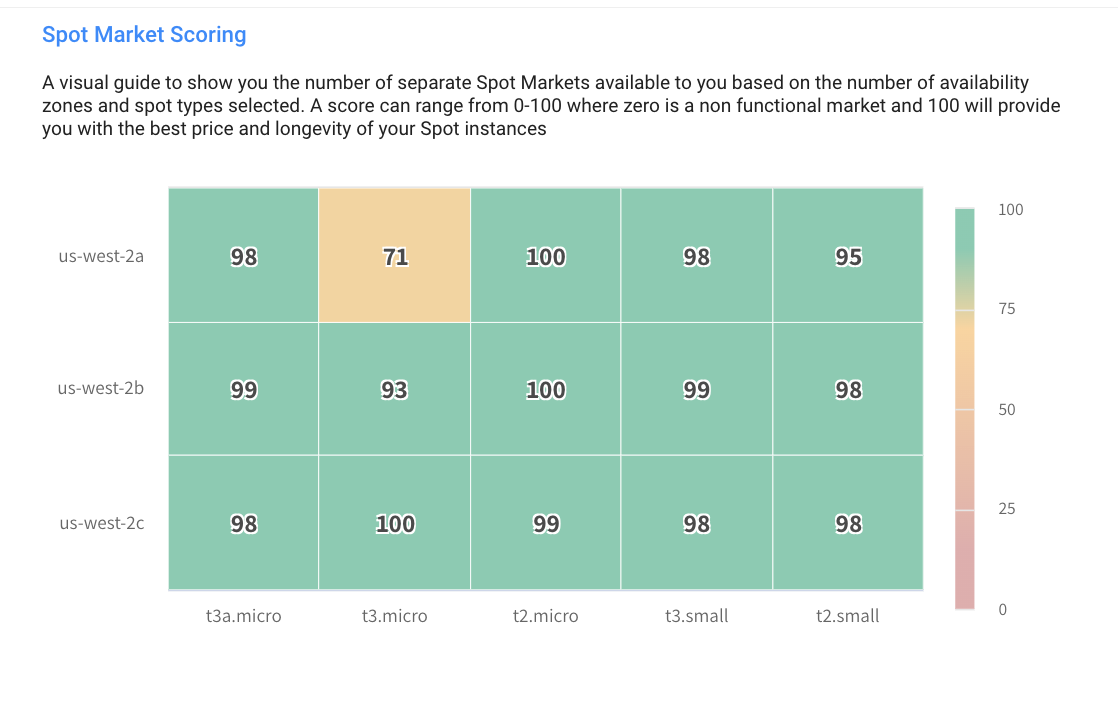
Once VPC, Subnets, Product, Image and Preferred Node type are selected, Spot will automatically preselect optional similar Spot Markets to ensure optimized cost efficiency. The Spot Market Scoring Table on the right will be populated:
Click to view image...
Spot Instance Types
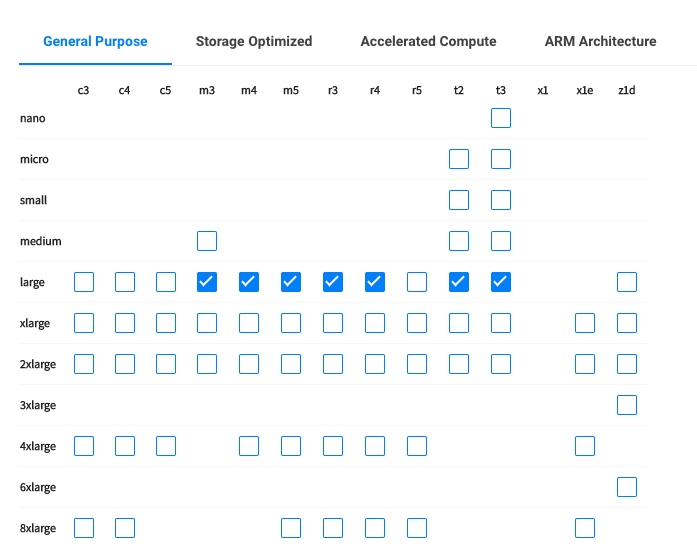
You can edit the Spot Market selection from the Spot Instance Types table. As you select more instances, the more nodes you select, the chance of finding the optimal spot node to launch in terms of cost and availability increases.
Click to view image...
Initialization and Termination
- User Data or Shutdown Scripts: Enter any User Data or Shutdown Scripts you need to run when you launch or terminate a node.
Shutdown Scripts require installing an Agent from the User Data. Click the Add Agent installation to User Data link to automatically add the required bash script to the User Data section.
Click to view image...

Tags
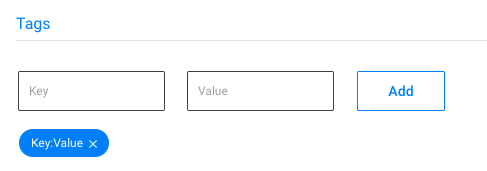
Add any custom Node Tags by typing in the Key and Value and click Add:
Click to view image...
Advanced
Enter any additional settings such as detailed monitoring for Amazon CloudWatch, EBS optimization, Burstable CPU for T2 or 3 nodes, IPv6 assignment and Public IP assignment.
Click to view image...

Step 2: Persistent Resources Tab
Use this tab to select the resources that your stateful node will persist.
To create a stateful node, you must select at least one storage or network persist option:
Storage Options
These are the storage options:
-
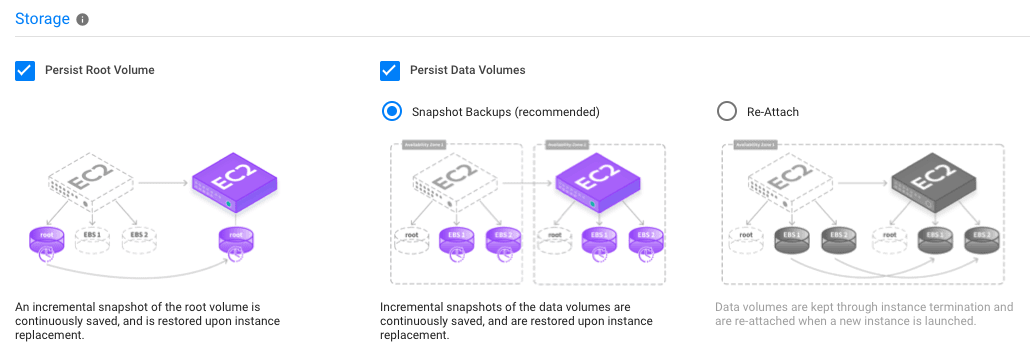
Persist Root Volume: Persistence is preselected by default, but you can deselect it.
-
Persist Data Volumes: You can select one of two methods:
-
Snapshots Backups (recommended): Incremental snapshots of the data volumes are continuously saved, and are restored on node replacement.
-
Re-Attach: Data volumes are kept through node termination and are re-attached when a new node is launched.
-
Click to view image...
Network Options
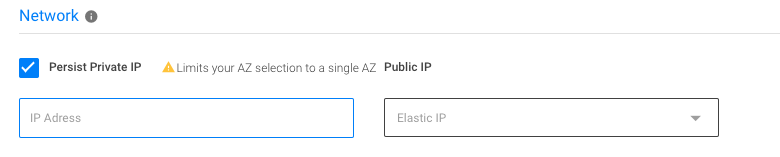
Private IP can be persisted by maintaining the Node's ENI across replacements. Optionally, specify a particular private IP to maintain.
Persisting Private IP will limit the stateful node to a single availability zone.
Public IP can be persisted by selecting an Elastic IP.
Click to view image...
Retrieve Traffic
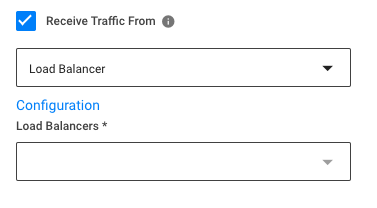
You can set the stateful node to receive traffic from Route53 or a Load Balancer.
-
For Load Balancers, select your Elastic Load Balancer or ALB Target Group:
Click to view image...
-
For Route 53 select your Hosted Zone, Record Sets and Public IP registration, then click
Add a Record.Click to view image...

Configure Maintenance & Auto Healing
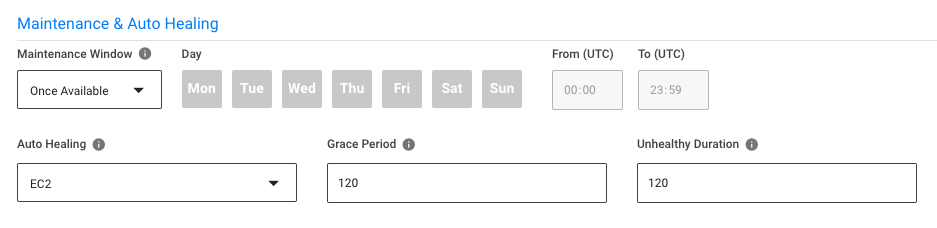
The Maintenance Window will determine when a Stateful Node may perform proactive replacements, meant to adjust the node type to your preference, or to revert back to spot in case a fall-back to On-Demand was made.
- Auto Healing will perform replacements of nodes deemed unhealthy according to the selected health check type.
- Grace Period is the time (in seconds) to allow a node to fully boot and applications to start before the first health check.
- Unhealthy Duration is the amount of time (in seconds) that a node deemed unhealthy will be kept before it is terminated and replaced with a new one.
Click to view image...
Configure Scheduled Actions
-
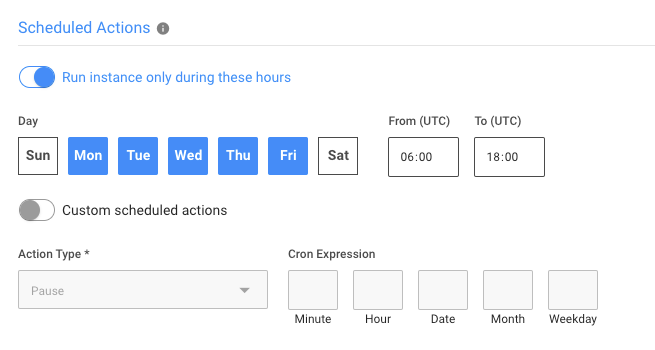
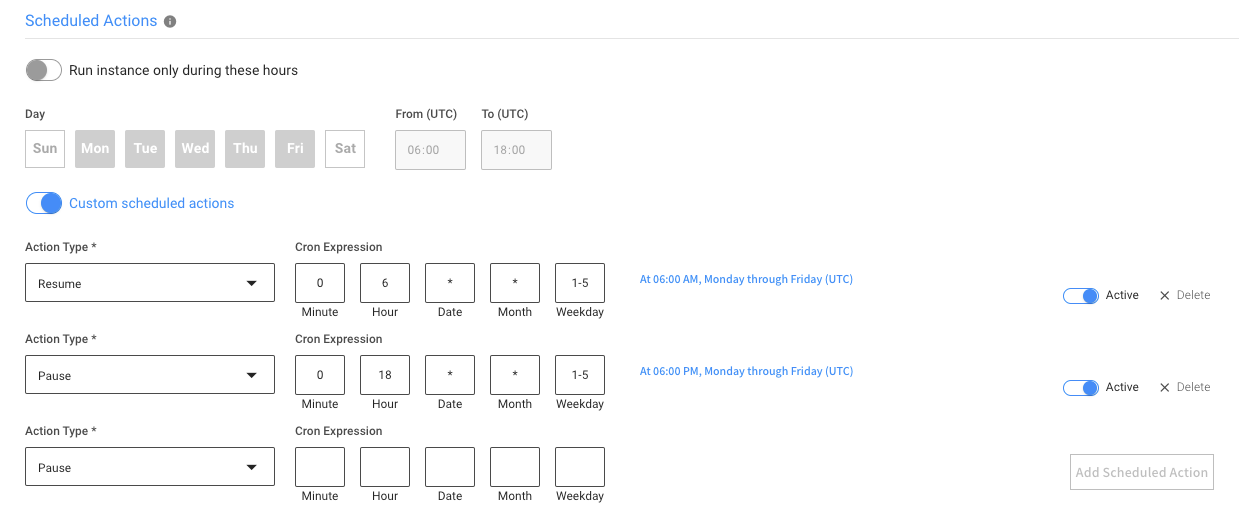
You can choose one of two options – predetermined Running hours, or custom scheduled actions.
-
Run instance only during these hours: Once you configure the time window, the stateful node will be Paused outside of it. At the beginning of the next window, it will be automatically Resumed along with its persisted resources.
Click to view image...
-
Custom (individual) scheduled actions, with custom CRON expressions. These actions are supported:
- Pause.
- Resume.
- Recycle.
Click to view image...
-
Step 3: Review Tab
The review tab provides a quick summary of your configuration.
Click to view image...
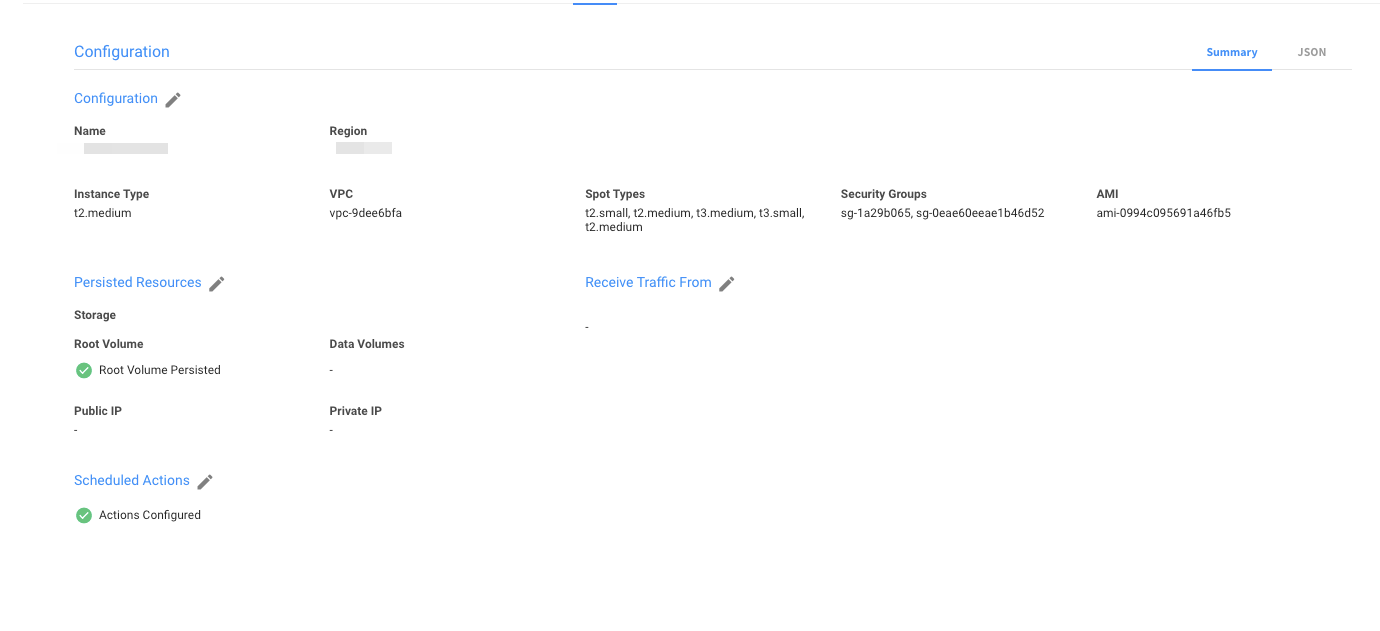
In addition, you can view the full JSON file, and turn on Edit mode to edit it manually.
Click to view image...
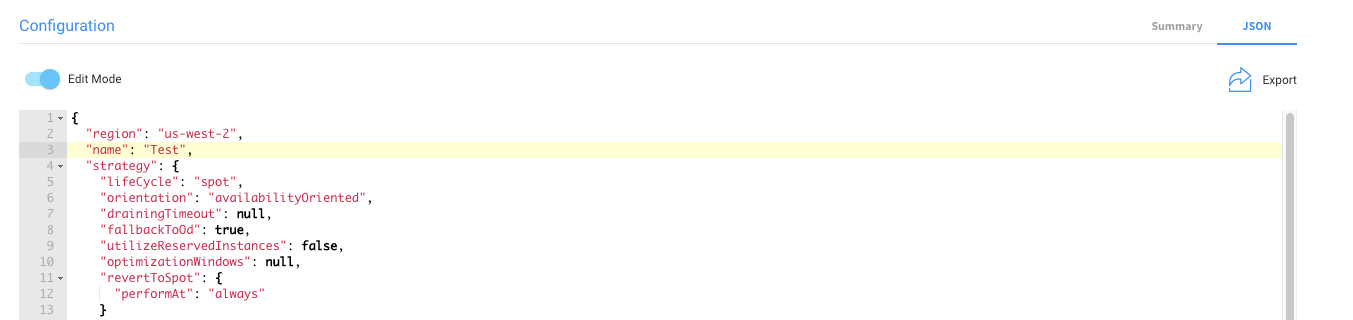
When you are finished, click Create, and the new stateful node will launch.
Edit a Stateful Node
To edit a stateful node:
- On the left menu, click Elastigroup > Stateful Nodes.
- In the Stateful Node table, click on the link for the required node under the Node Name column.
- On the right of the screen, above the table, click Actions > Edit Configuration.
- Edit the tabs.